

Minimum OS: Windows 7 |
|
UltraVNC 1.8.4.3
|

Release summary — October 2026
This is a beta build. The headline feature is native TLS encryption with token (TOTP) login — Encrypted VNC sessions without an encryption plugin, plus username + authenticator-code logins. Please test and report issues on the forum or GitHub.
What is new in 1.8.4.3-dev
Encryption & authentication
- Native VeNCrypt TLS encryption — UltraVNC Server and UltraVNC Viewer now support TLS 1.2/1.3 encrypted sessions without a DSM plugin. The whole session, including file transfer, runs inside the TLS tunnel.
- Token (TOTP) login — Log in with a username and the 6-digit code from an authenticator app (FreeOTP, Microsoft Authenticator, Google Authenticator, Authy — Any RFC 6238 app).
- TokenValidator.dll + Token Manager — A pluggable validator DLL checks the credentials. Users are managed from the Server UI with QR-code enrolment, or with the
TokenSetup.execommand-line tool. - Session-token reconnect — After a drop (e.g. a desktop switch) the Viewer reconnects without asking for a new code. One-time token, 12-hour validity, kept in memory only.
- SCRAM-SHA-256 password auth over TLS — VeNCrypt subtypes 263/264 (TLS-SASL/X509-SASL) with optional channel-bound SCRAM-SHA-256-PLUS; compatible with QEMU/KVM and virt-viewer.
- MS-Logon III inside TLS — MS-Logon III (subtype 301) can now run protected by the VeNCrypt TLS tunnel.
- VeNCrypt subtype allow-list — The new SSL/TLS tab lets you enable exactly the authentication subtypes you want.
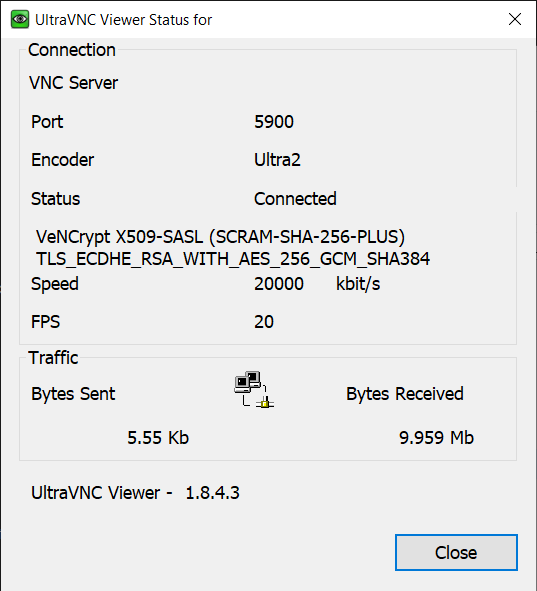
- Viewer shows the negotiated encryption — The status window displays the actual TLS version/cipher used for the connection.
- noVNC HTTPS — Separate HTTPS port and certificate settings for the built-in web client.
- Certificate management in the UI — Pick a certificate from the Windows Certificate Store or generate a self-signed one directly from the SSL/TLS tab.
New options & feature requests
- Option to disable auth and/or encryption for localhost connections — For setups where a tunnel (e.g. SSH) terminates on the Server itself. INI keys
AllowLoopbackWithoutDSM/AllowLoopbackWithoutAuth. - File transfer: Asks before overwriting an existing folder, also when copying to the Server.
- Viewer:
/keepaspect— Preserve the aspect ratio in scale-to-window mode. - Viewer: Win/Apps keys are forwarded in fullscreen without needing Scroll Lock.
- Viewer: Auto-reconnect now also applies to the initial connection (retries on authentication failure).
- Viewer: AuthHosts IP filter for listen mode — Same +/-/? syntax as the Server, via
/authhostsor the options file. - Viewer: No error popups for rejected listen-mode connections.
- Snapshots: Use
%hostname%in the file-name prefix to include the Server name. - Behaviour change: When a full-access login (password + key) is refused, the view-only password is no longer tried when a key was used.
- Fix: binary-safe handling of the encrypted VNC password (no
strlen()on the encrypted blob).
New dialogs
Server — Settings > SSL/TLS tab
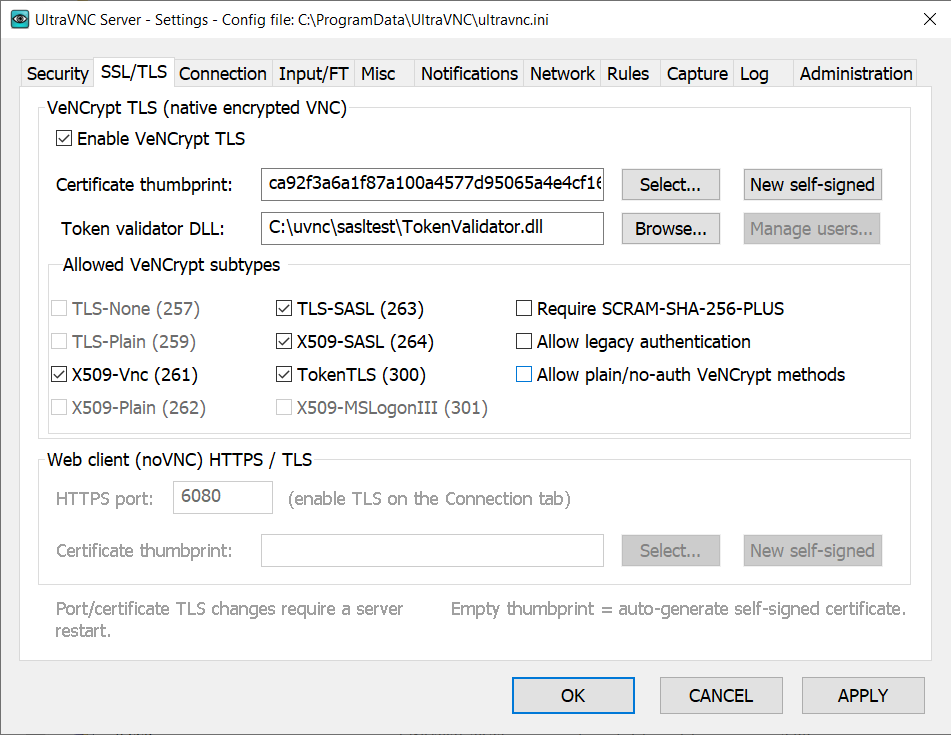
Enable VeNCrypt TLS, select or generate the certificate, set the token-validator DLL and choose the allowed subtypes. The lower part configures HTTPS for the noVNC Web client.
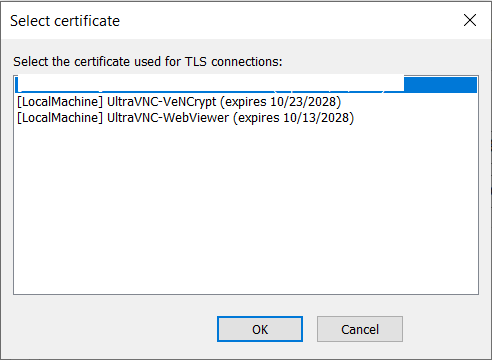
Server — Settings > SSL/TLS tab > Certificate picker
Server — Settings > SSL/TLS tab > Token Manager (Manage users…)
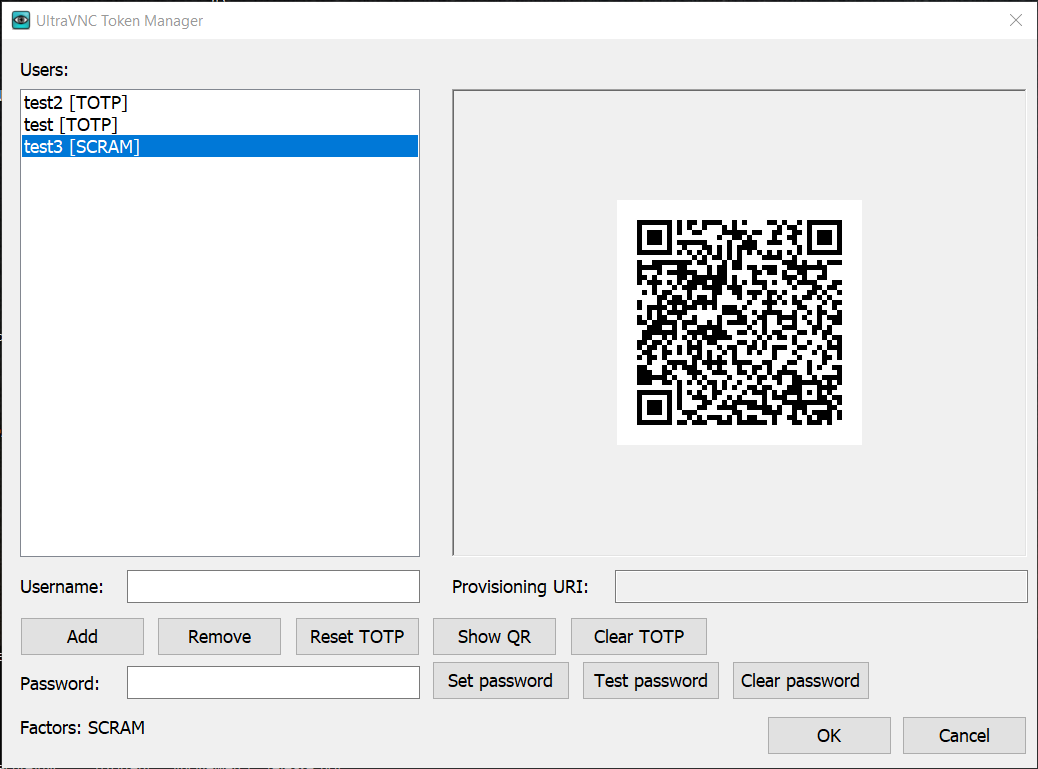
Add/remove users, reset or clear a TOTP secret, show the QR code again, and set/clear a SCRAM password. Each user shows its enrolled factors, e.g. alice [TOTP+SCRAM].
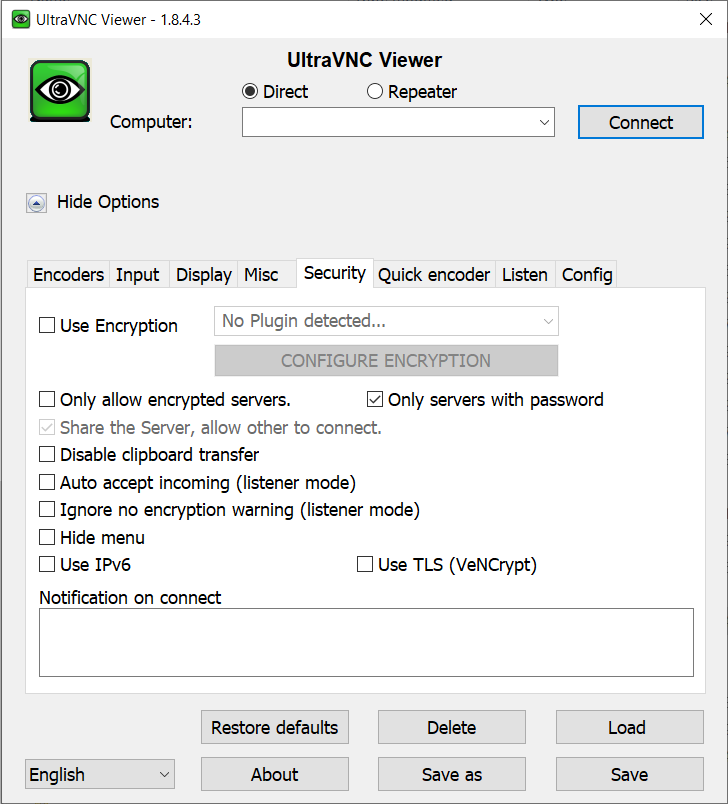
Viewer — Use TLS (VeNCrypt) option
Viewer — Username + Token login
Viewer — Status window shows negotiated TLS
How to set up TLS on the Server
- Right-click the UltraVNC Server icon in the System tray → Settings.
- Open the new SSL/TLS tab.
- Tick Enable VeNCrypt TLS.
- Certificate: Leave the thumbprint empty to auto-generate a self-signed certificate, click Select… to pick one from the Windows Certificate Store, or New self-signed to create one.
- Under Allowed VeNCrypt subtypes, tick the methods you want to offer (token login = TokenTLS (300); classic VNC password over TLS = X509-Vnc (261); SCRAM = TLS-SASL (263)/X509-SASL (264)).
- (Recommended) Untick Allow legacy authentication so old unencrypted logins are refused.
- Click OK — Restart the UltraVNC Server if asked.
The same settings can be written directly to ultravnc.ini:
[admin]
EnableVeNCryptTLS=1
RequireVeNCryptTLS=1
VeNCryptTokenDLLPath=C:\path\to\TokenValidator.dll
VeNCryptTokenDLLPath must be an absolute path. If it is empty, UltraVNC Server uses TokenValidator.dll next to winvnc.exe (TokenValidator32.dll for the x86 build).
How to use a token (Viewer side)
One-time enrolment
- On the Server, SSL/TLS tab → Manage users… → Add → type a username. A QR code appears.
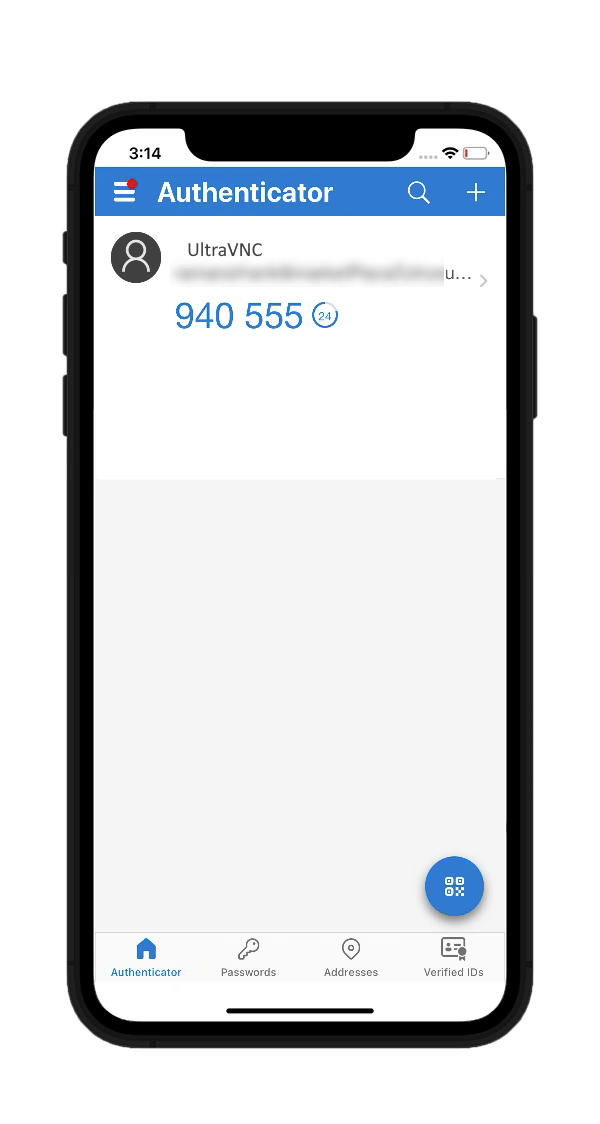
Alternative: RunTokenSetup.exe usernameon the Server — It prints the secret and writes ausername_totp.bmpQR image. - On your phone, install FreeOTP / Microsoft Authenticator / Google Authenticator / Authy and scan the QR code. The app shows “UltraVNC: username” with a 6-digit code that changes every 30 seconds.
Connecting
- In the Viewer options tick Use TLS (VeNCrypt), or just connect — The Server advertises the subtype automatically.
- The login box asks for username + token: the token is the 6-digit code currently shown in your app.
- You are in — Status bar shows the negotiated TLS version/cipher.
Command line:
vncviewer.exe server:5900 -user alice -token 123456
On reconnects (e.g. after switching to the logon screen and back) the Viewer uses a one-time session token — No new code needed. The token is valid up to 12 hours, is consumed on use and replaced after each successful reconnect, and is never written to disk.
Other Viewers (QEMU, virt-viewer…)
Any Viewer that speaks standard VeNCrypt TLSPlain/X509Plain can connect: Choose TLS encryption + username/password authentication and enter the current TOTP code as the password. SCRAM-SHA-256(-PLUS) works via subtypes 263/264.
FAQ
Which TLS versions are supported?
TLS 1.2 minimum. TLS 1.3 is negotiated automatically on Windows 11 / Windows Server 2022 and later; older systems fall back to TLS 1.2.
Do I still need the DSM encryption plugin?
No — VeNCrypt TLS is native. DSM plugins keep working; both can be enabled side by side.
Is file transfer encrypted too?
Yes. Everything after authentication — framebuffer, input, clipboard, file transfer — stays inside the TLS channel.
My code keeps changing — Which one do I use?
The code shown right now when you click OK. Codes just before/after also work (one-step clock tolerance).
“Authentication failed” — Why?
Wrong username, mistyped/expired code, or the Server clock is off. TOTP is time-based — Check the clock/timezone on the Server.
“Manage users…” is greyed out.
The validator DLL path is missing, not absolute, or the DLL cannot be loaded — Re-browse to TokenValidator.dll.
UltraVNC Server runs as a service (SYSTEM) and codes fail.
Enrol the user with the SYSTEM account (PsExec -s -i TokenSetup.exe alice) or rely on the encrypted TokenValidator.credentials.ini fallback, which the DLL reads in both cases.
The Viewer warns about the certificate.
Self-signed certificates are not trusted by default. Check the thumbprint against the Server’s SSL/TLS tab and accept it — the Viewer remembers it.
Can old/other VNC Viewers still connect?
Only if you allow it: tick Allow legacy authentication for classic unencrypted logins, or a VeNCrypt-capable Viewer can use subtype 259/262.
How do I go back / disable it?
Untick Enable VeNCrypt TLS on the SSL/TLS tab (or set EnableVeNCryptTLS=0) and the Server offers the classic security types again.
Where are the secrets stored?
TOTP secrets live in Windows Credential Manager (UltraVNC_TOTP_<user>) plus a DPAPI-encrypted INI fallback; SCRAM stores a derived verifier, never the plaintext password. Everything stays on the Server.
SHA256 hashes:
SHA256 hash of UltraVNC_1843-dev_X86_Setup.exe:
b0e1194747726360076c1ab1f7b726cbe5533b030d8802ac8ef8cd7631c0c07c
SHA256 hash of UltraVNC_1843-dev_X64_Setup.exe:
86a75f68ad0fc087368b777ee0149db314de6ad6e261809b87e762b6654f85a5
SHA256 hash of UltraVNC_1843-dev.zip:
21018155ace97db68be22ecd42627729dc8fd1c0b902ec9ff67bafa12cd0df89
DOWNLOADS
 UltraVNC 1.8.4.3-dev (ZIP) x86 x64 1.8.4.3


 17655786
 532
INSTALLERS
 UltraVNC 1.8.4.3-dev x86 Installer 1.8.4.3 UltraVNC 1.8.4.3-dev x64 Installer 1.8.4.3